As part of annual website maintenance and improvements, our website has a fresh new look to make it more accessible and easier to use.
All website content, services, forms and page links remain the same.
What’s changed?
- A cleaner more modern appearance with improved colour contrast for readability and layouts that work better across different monitor sizes, mobiles and tablets.
- Navigation at the top of the page to improve accessibility, mobile usability and meet modern website standards.
- Simplified menus where you can open a service area or topic to see all related pages for easy browsing, which also improves accessibility and the mobile experience.
- Breadcrumb navigation links for each page – reducing the number of steps for users to move back and forth between different pages.
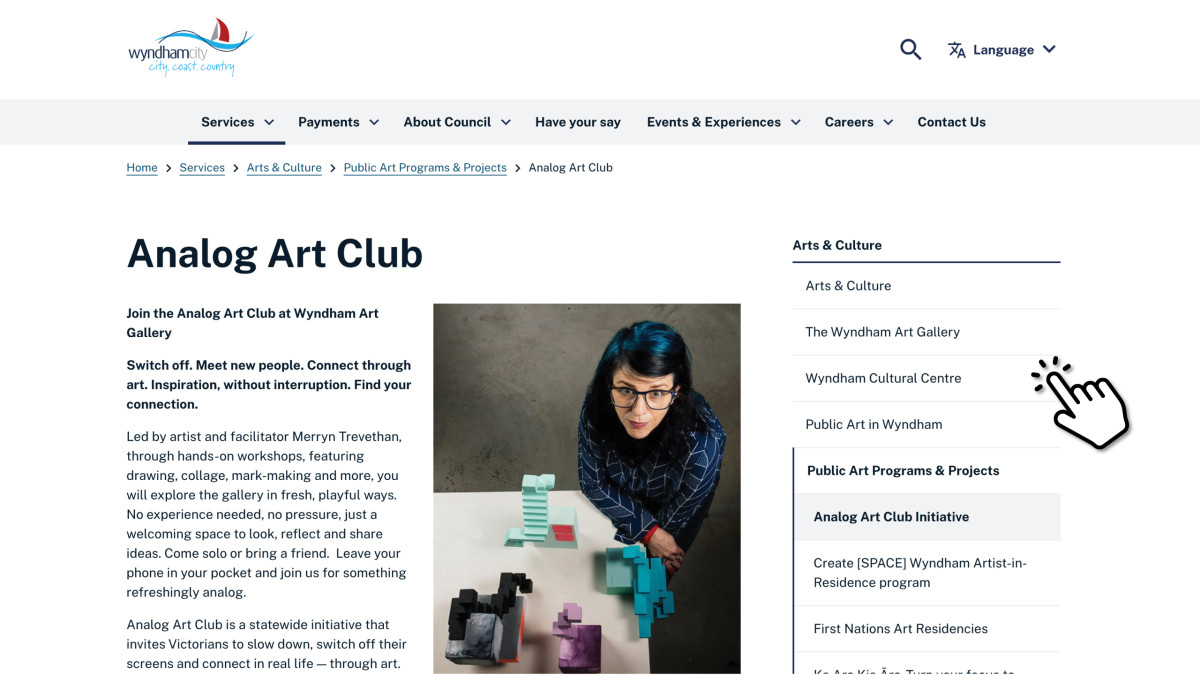
- Side navigation on content pages so users can quickly see other related page options, without going back to the main menu.
Top Tips
Homepage and top navigation
To find a service or information, you can:
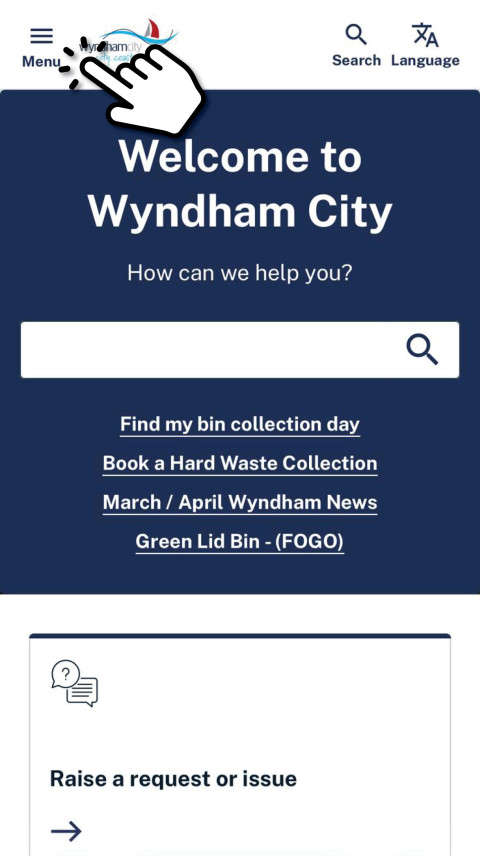
- Select items from the drop-down menus at the top of your screen
- Use the search bar
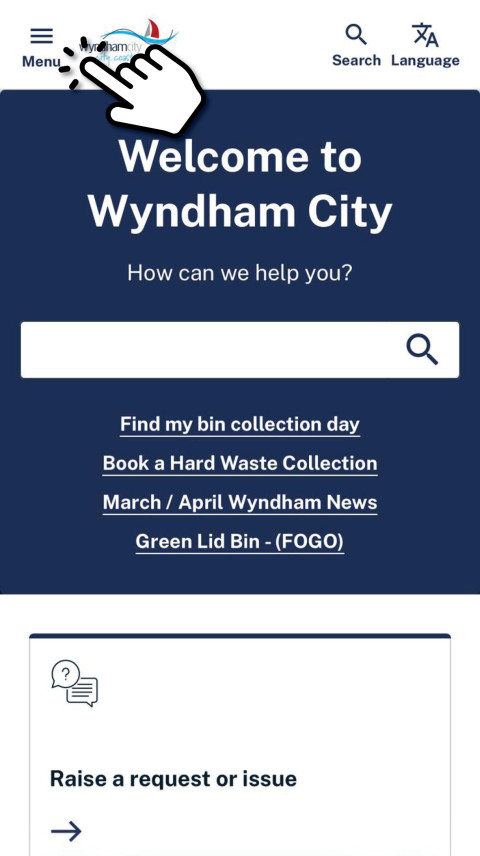
- Scroll through the homepage to access frequently used services and topics
Desktop View
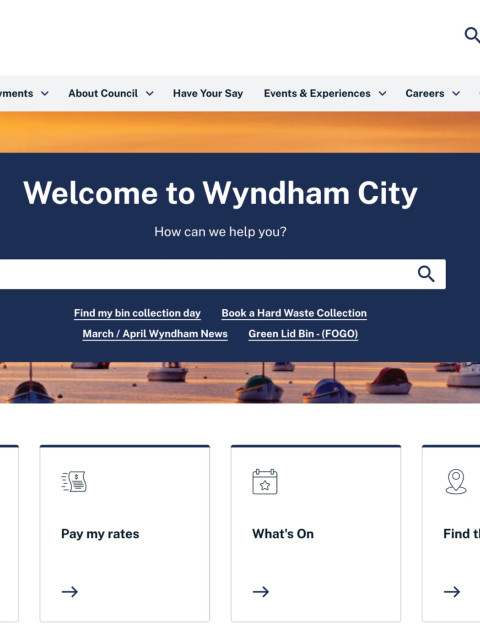
Mobile View
Finding pages within the menu
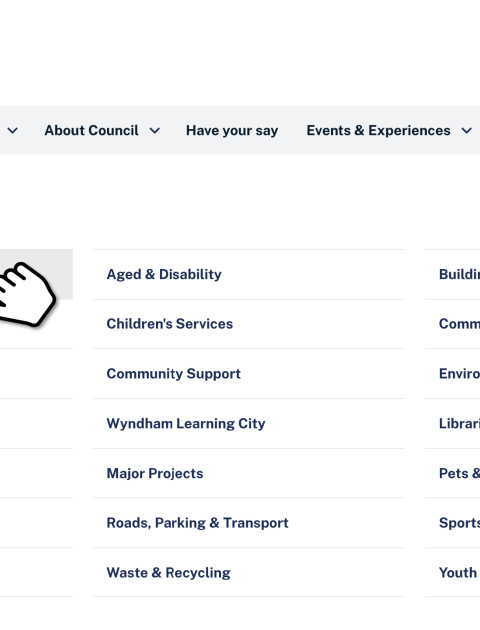
Drop-down menus have been simplified.
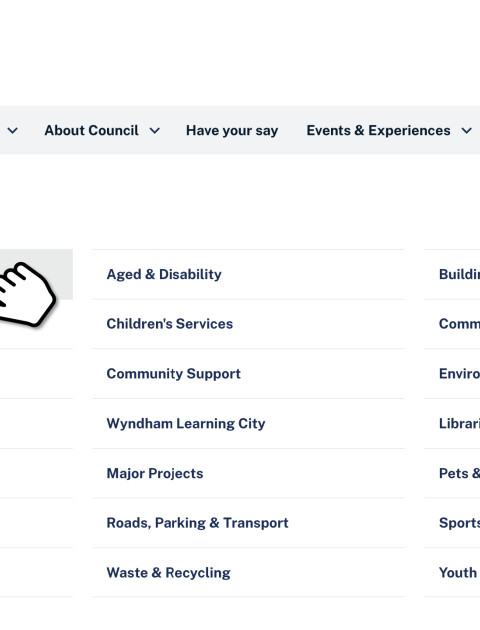
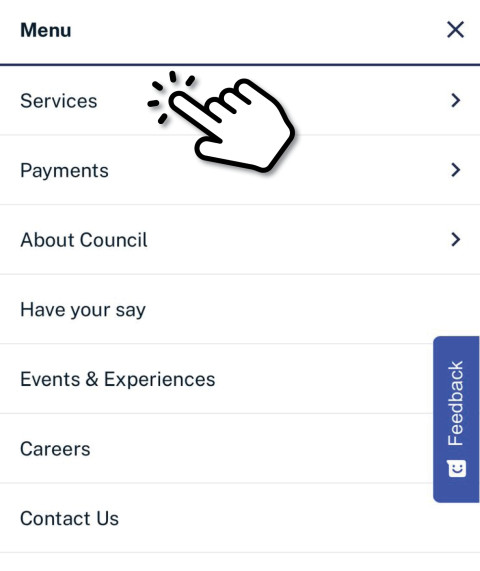
- Using the drop-down menu at the top of the page, click on the main service area or topic you’re interested in.
Desktop View
Mobile View
 | 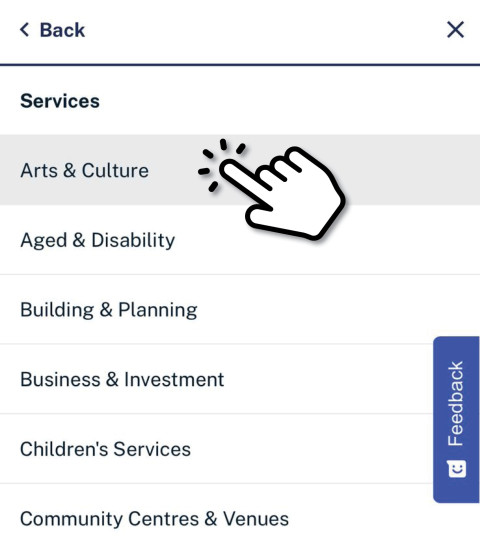 |
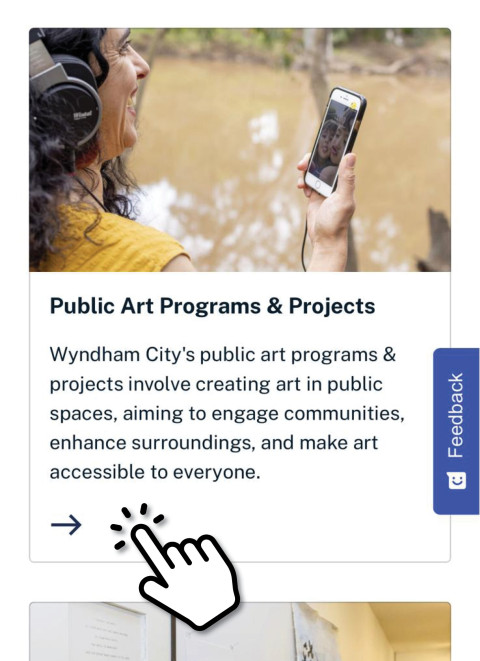
- This will take you to a page where you can see all the pages that relate to that service area or topic – all in one place for easy access.
- Click on the page of interest from the featured tiles
Desktop View
Mobile View
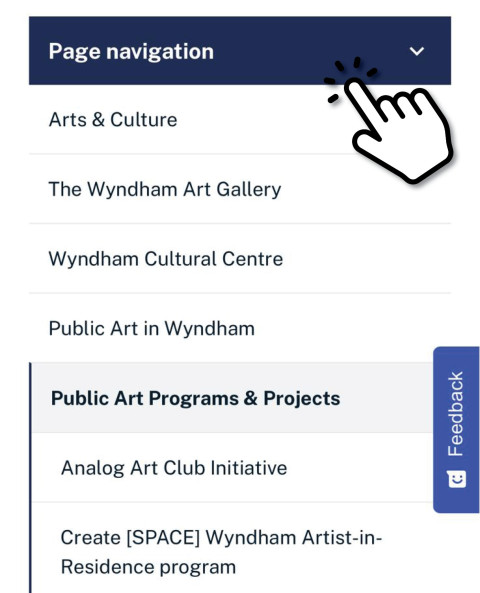
- Within a service area page, on a desktop computer you can also use the side navigation to move between pages, or on mobile you’ll find this additional navigation option at the top of a page.
Breadcrumb navigation
A breadcrumb link is the small strip of linked text above the page heading that shows the title of the page you're on, and the pages it sits under.
Click on any link within the breadcrumb trail to go back or explore related pages.
Desktop View
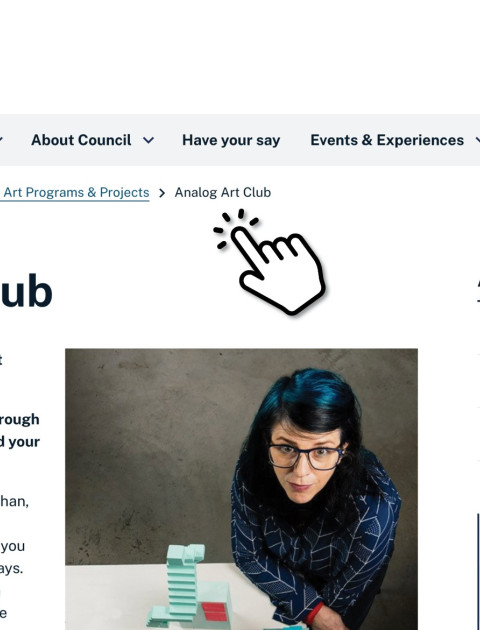
Mobile View
How do I clear my website browser cache and refresh?
Seeing some display issues on the website?
How to refresh the website page
If something doesn’t look right, refreshing your browser will usually fix it. This loads the latest version of the website.
- On a Desktop Computer: Click the refresh/reload icon next to the address bar or press Ctrl + Shift + R (Windows) or Cmd + Shift + R (Mac).
- On a Mobile or Tablet: Swipe down on the page to refresh or tap the refresh icon in your browser menu.
How to clear your website browser cache
If the page still looks old or displays incorrectly, your browser may be showing a saved (cached) version of the website.
- Close and reopen your browser, then visit the website again.
- If the problem continues, clear your browser cache. Instructions vary by browser with tips below.
- After clearing your browser cache, close and reopen the browser.